
Advanced Features - Bot Setup
If you want to significantly reduce customer service costs and improve efficiency, an intelligent bot is the ideal choice. QIABOT's intelligent bot integrates AI models to serve visitors more accurately and naturally.
- How to Add a Bot in the Admin Panel
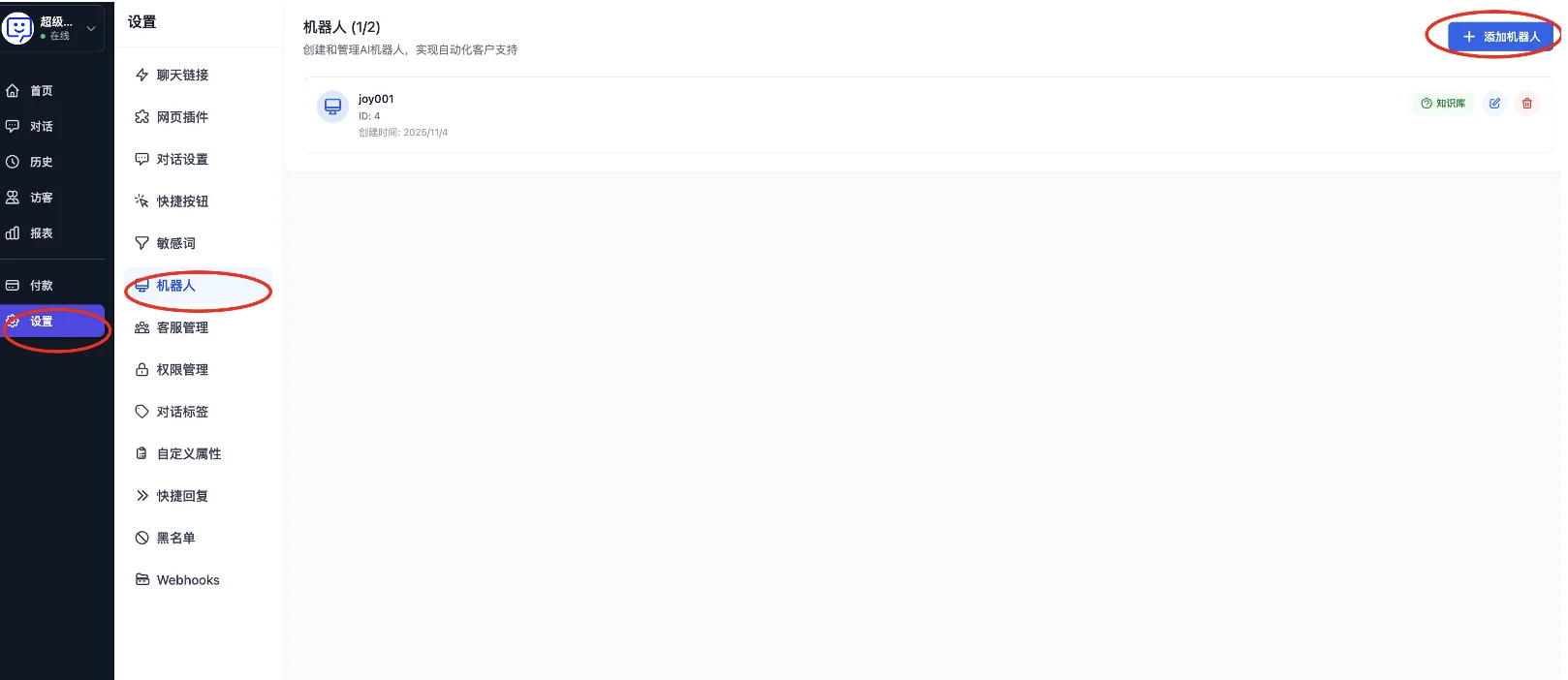
- Click "Settings" at the bottom of the left navigation bar, then select "Bot". You can then start adding a bot.
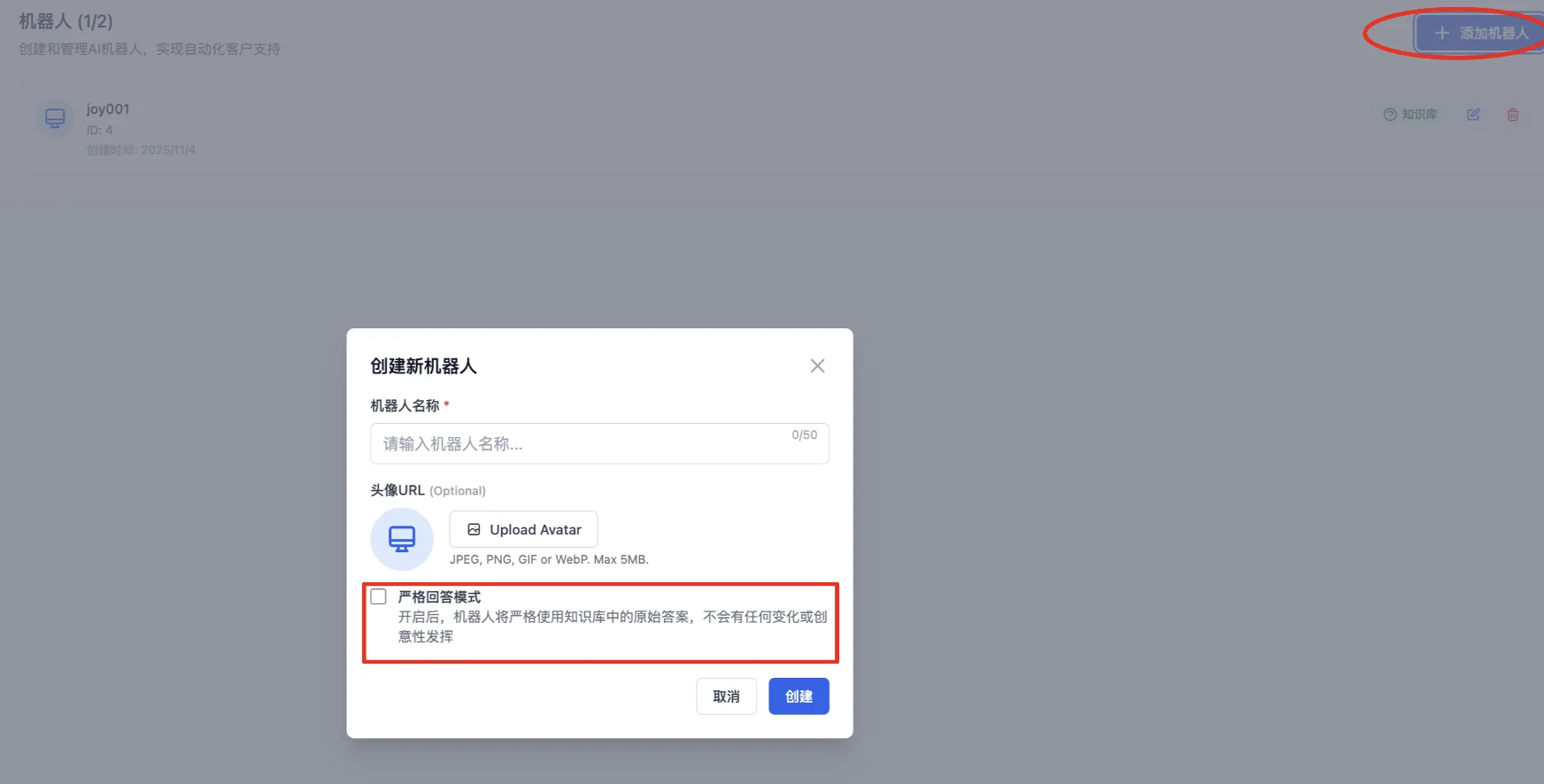
- After clicking "Add Bot", you can set the bot's name and avatar in the popup. Most importantly, you can choose whether to enable "Strict Answer Mode". When enabled, the bot will reply strictly based on the knowledge base content, without any creative responses.
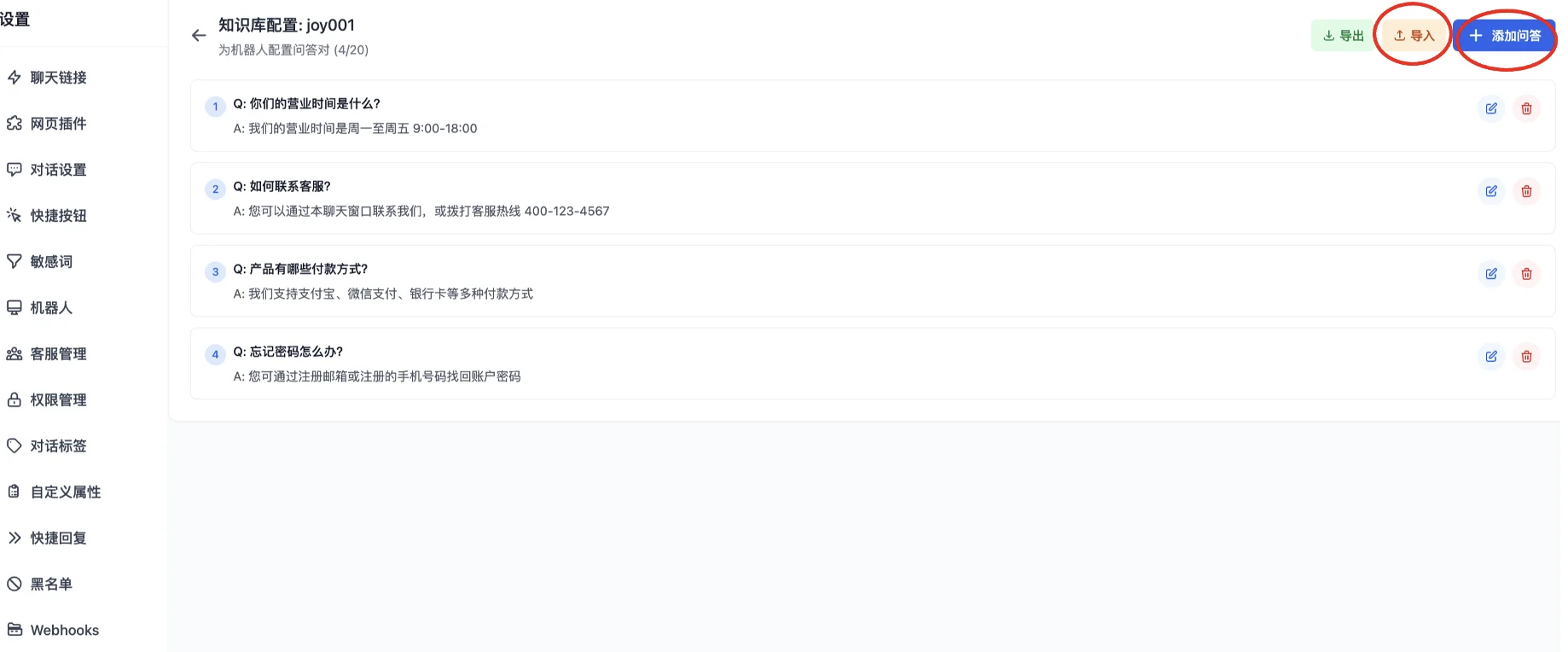
- How to Configure the Bot's Knowledge Base?
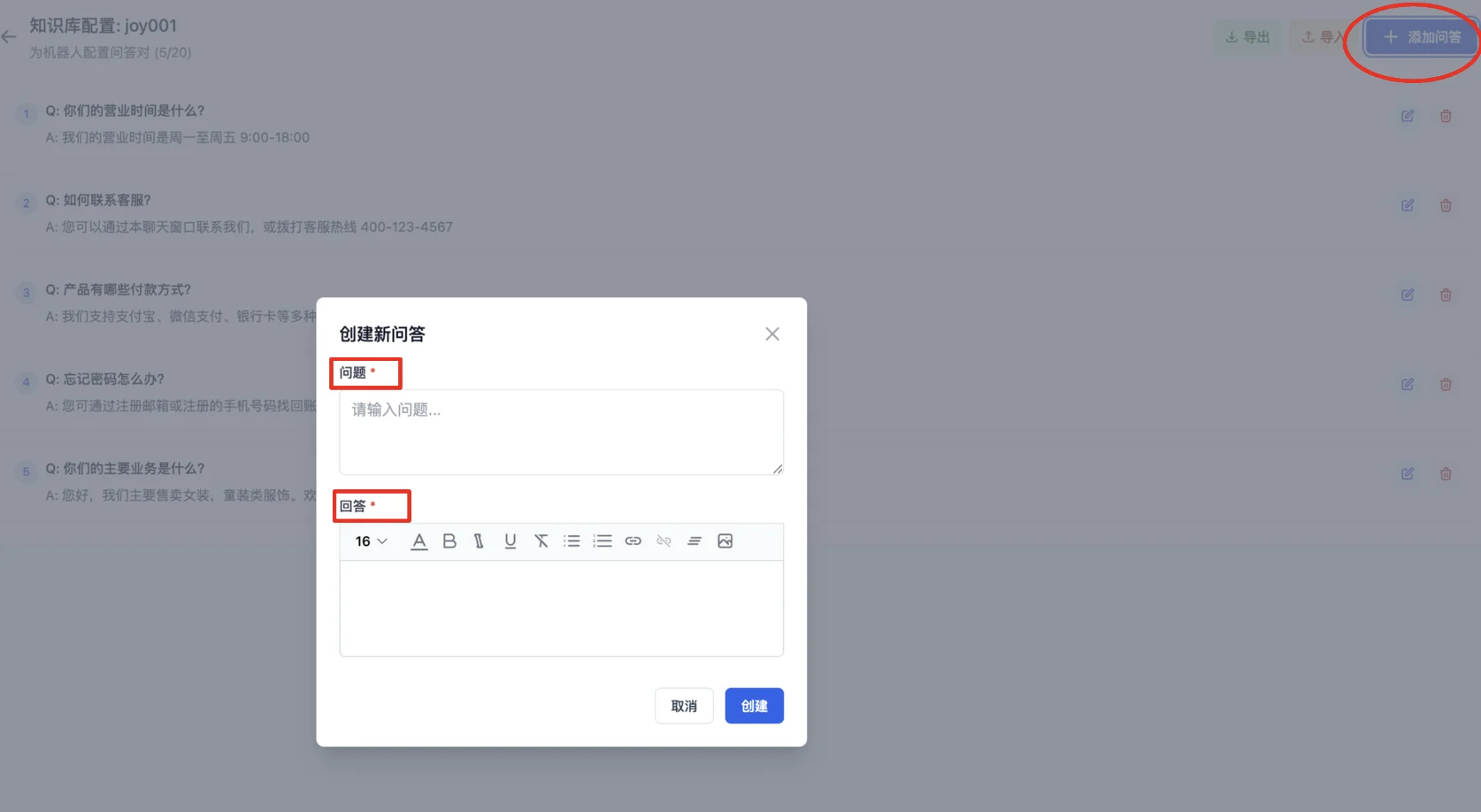
- Click the "Knowledge Base" icon on the right side of the bot to enter the editing page, where you can import a knowledge base or manually add Q&A pairs.
- If you choose to import a document, simply upload the file in the popup. If you're unsure how to format the spreadsheet, you can download the template, fill in the content, and then upload it.
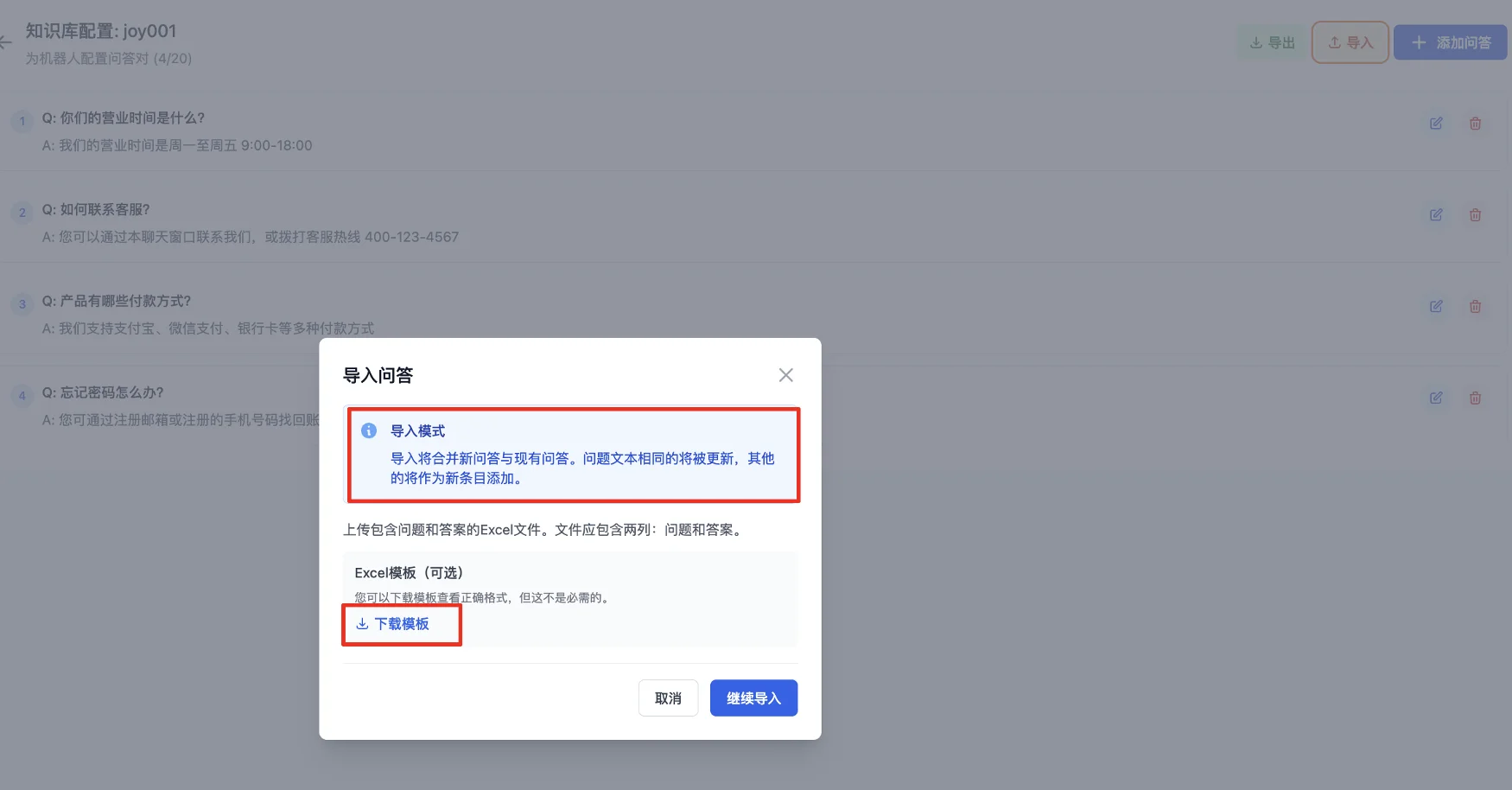
Note: If the uploaded file contains questions that overlap with existing ones in the knowledge base, the system will not create duplicate entries. Instead, it will update the existing answers with the new ones from the file.
- The simplest approach is to manually add Q&A pairs directly.
- How to Use the Bot
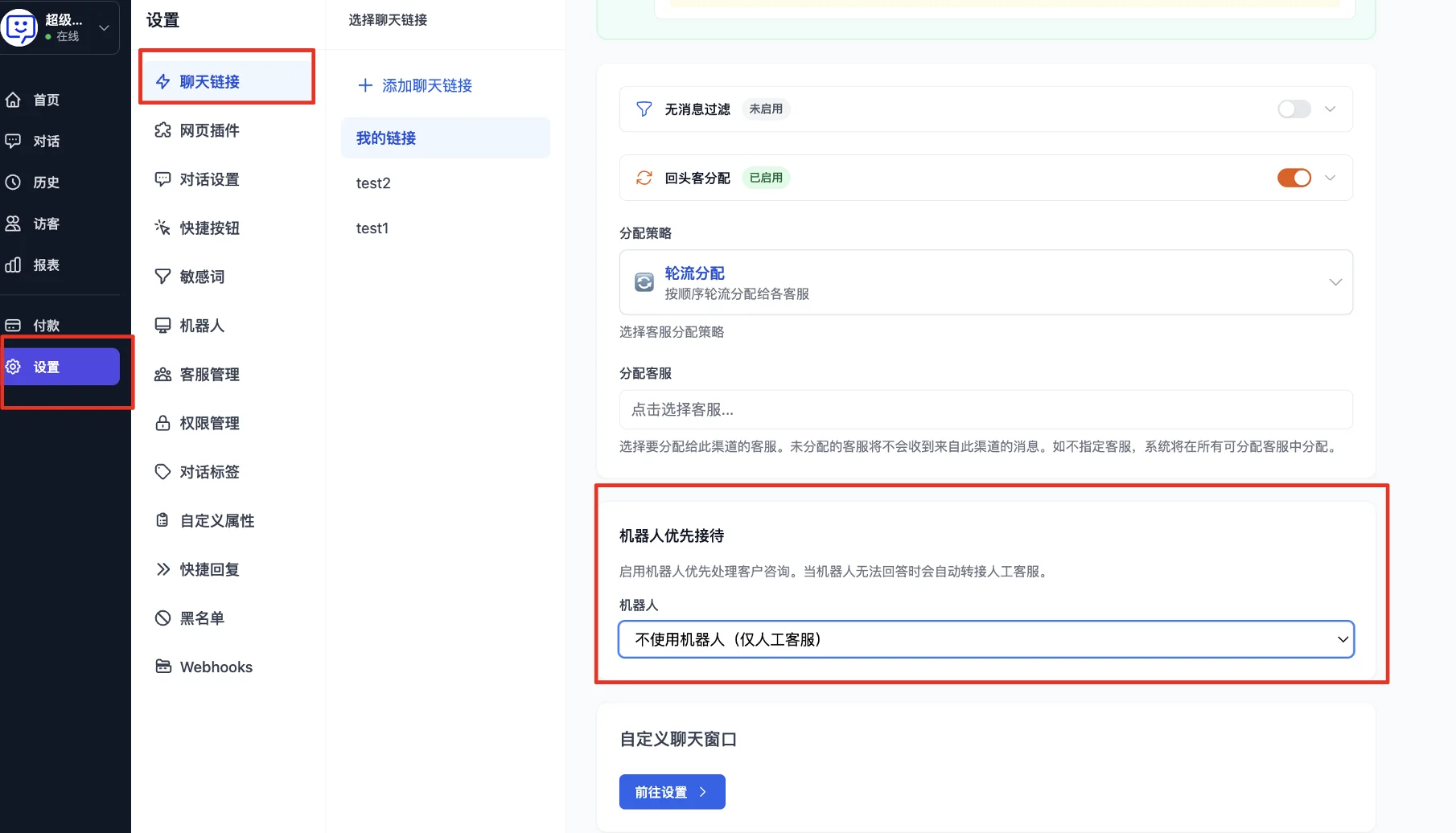
- To enable the bot, go to "Settings" in the left navigation, enter "Chat Links", select the channel you want to configure with the bot, and scroll down to "Bot Priority Reception". Once enabled, the bot will handle conversations first. When the bot detects it cannot answer a question, it will automatically transfer to a human agent.
Congratulations! You've completed the "Bot" feature module!
By setting up a bot, visitors can receive responses even when agents are offline or busy. When properly configured, the bot can gather visitor information and conversation intent before a human agent takes over, greatly saving agent time and improving work efficiency.
Next step: Visit other Advanced Features to explore how to further unlock QIABOT's potential and make the most of every feature to enhance your workflow.