
Advanced Features - Sensitive Words
During conversations with visitors, sometimes you need to set up a sensitive words feature to filter inappropriate content, maintain professionalism in chat pages, reduce the risk of account suspension, block abusive language, and protect agent morale.
- Adding Sensitive Words: You can add sensitive words in the admin panel. There are separate lists for words blocked from visitors and words blocked from agents.
- Click "Settings - Sensitive Words" to enter the settings page, and first configure "Visitor Sensitive Words":
- Here you can choose to "Add Sensitive Word", or search for sensitive words to edit, delete, and perform other operations.
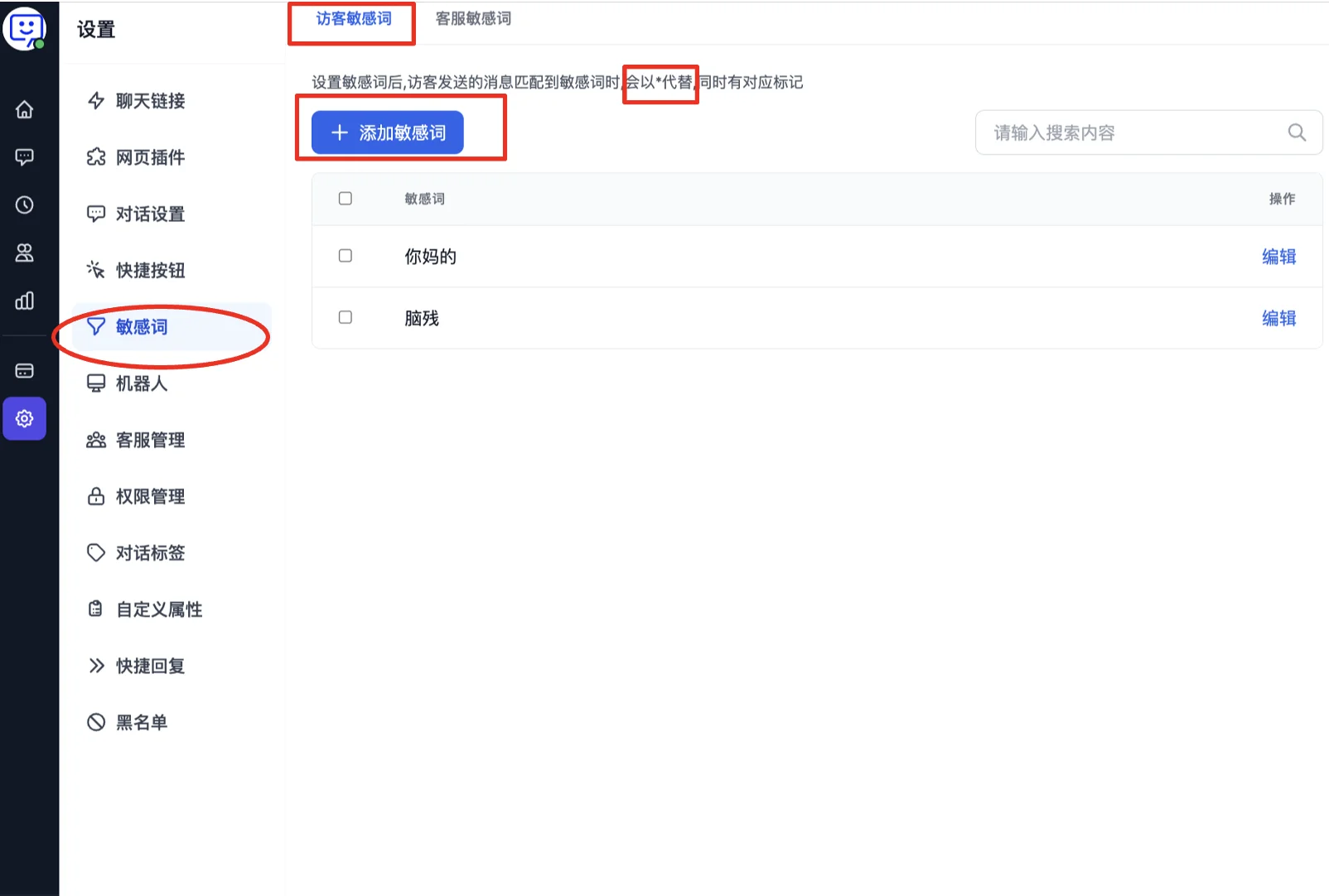
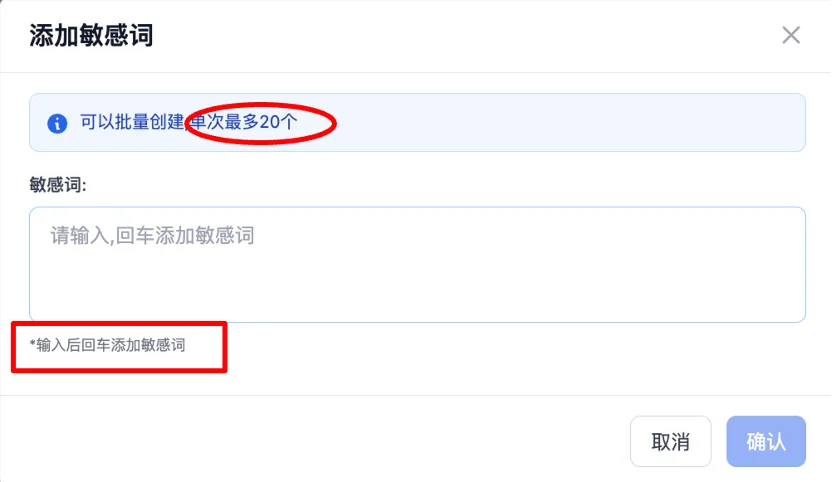
- After selecting "Add", you can enter sensitive words in the popup. Note: after entering each sensitive word, press Enter to confirm.
- Setting Agent Sensitive Words:
- The process is the same as adding visitor sensitive words - select "Add" and enter the sensitive words in the popup.
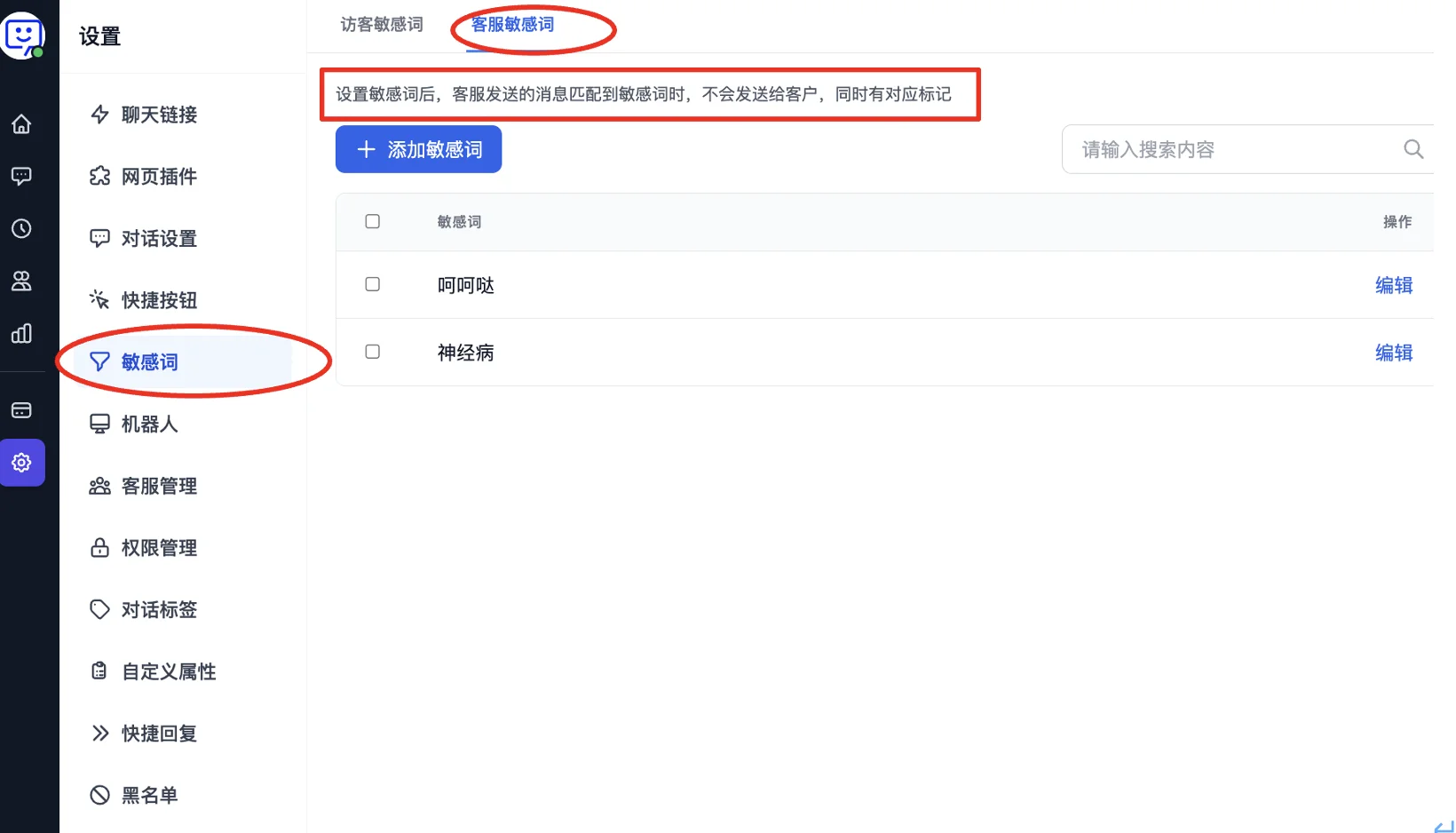
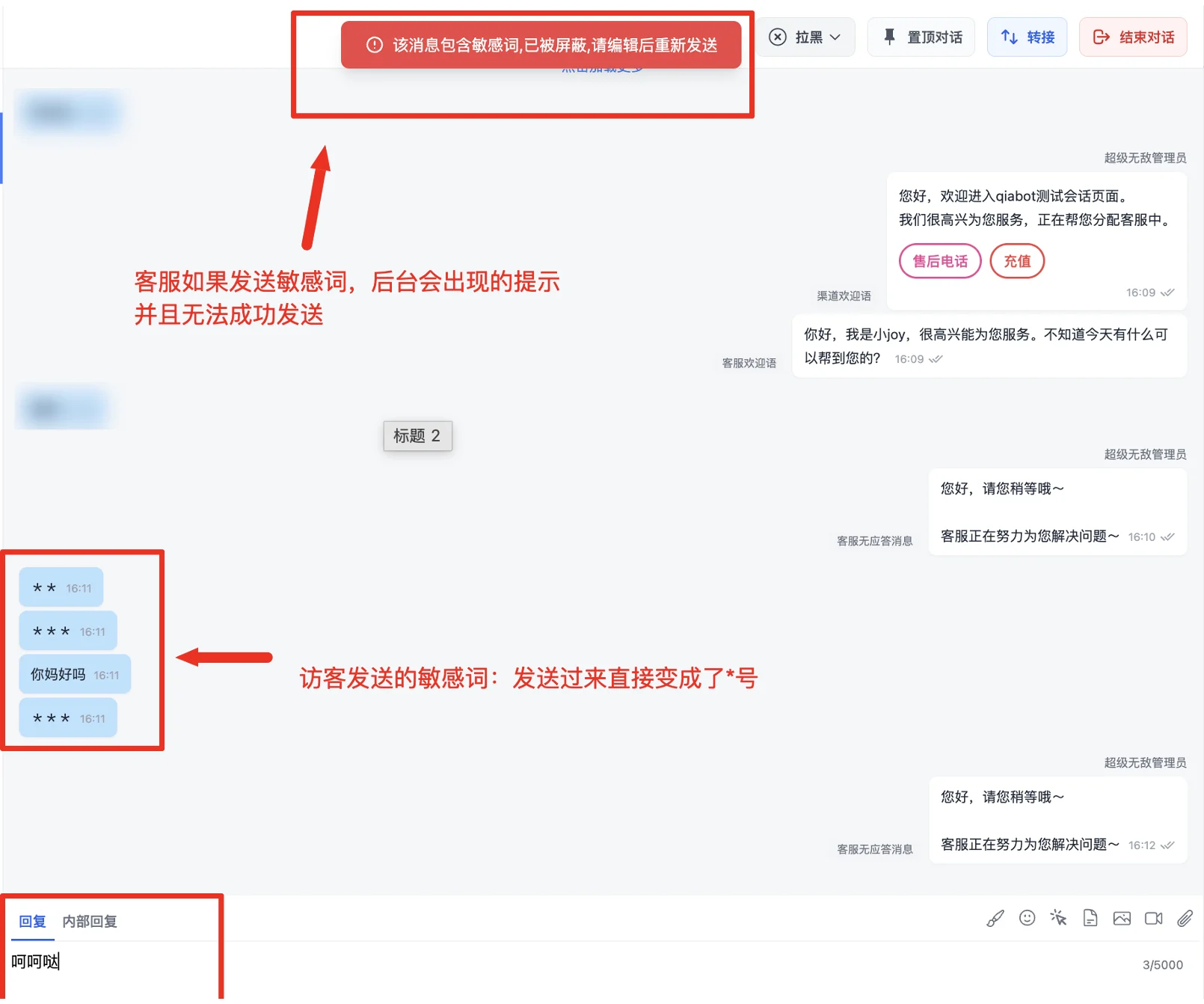
- Sensitive Word Display: The display mechanism differs between the agent side and the visitor side.
- Visitor side: Visitors can see that their sent sensitive words have been replaced with asterisks (*). However, they will not receive sensitive words sent by agents.
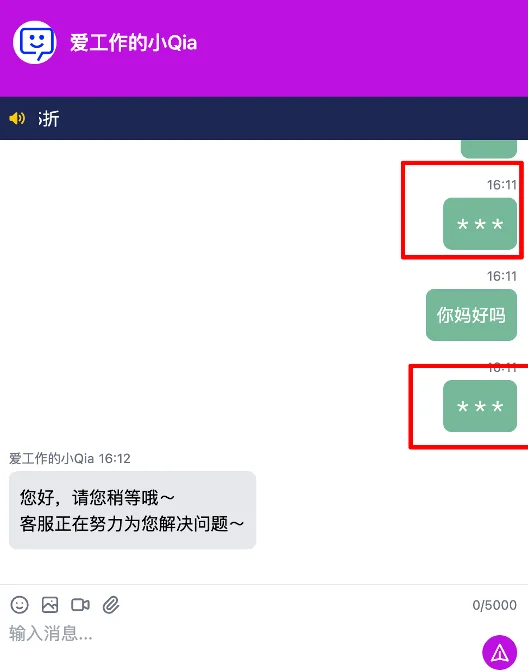
- The agent dashboard will show a highlighted warning, requiring the agent to re-edit the content before sending.
Congratulations! You've completed the "Advanced Features - Sensitive Words" module!
By setting up the sensitive words feature, your chat pages will be more professional. Not receiving visitor sensitive words protects agent morale, while hiding agent sensitive words also improves the visitor's conversation experience.
Note: You should carefully evaluate each sensitive word before adding it. If a word is inappropriate (e.g., too broad), it may reduce conversation efficiency.
Next step: Visit other Advanced Features to explore how to further unlock QIABOT's potential and make the most of every feature to enhance your workflow.